Case study · Citizen
An app for a soccer ball that measures your kick
At Citizen our team designed the miCoach KickApp for Adidas: an iPhone app that talks to a digital soccer ball and shows each kick's speed, distance, bend and flight.
- Role
- DPM
- Organization
- Citizen
- Platform
- iPhone app paired with the Adidas miCoach digital soccer ball
In short
- 01Adidas was building a digital soccer ball for miCoach and needed an app for an executive prototype: kick the ball, then see what the kick did.
- 02Our team at Citizen mapped the kick flow, explored five visual directions, and designed the screens, motion and sound.
- 03The work produced the Open Kick and Get Better flows, locked for asset slicing and handoff to Adidas's developers, plus motion studies and a sound set.
- application flow · OmniGraffle
- visual design concepts · Retro Crisp, Font Flick, Precision Strike, GeoSport, Eclipse
- background image options
- motion studies
- sound design · real-life and digital directions
- UX concepting · Record Book
- asset slicing and handoff
01Opportunity
A ball that records the kick needs an app that explains it
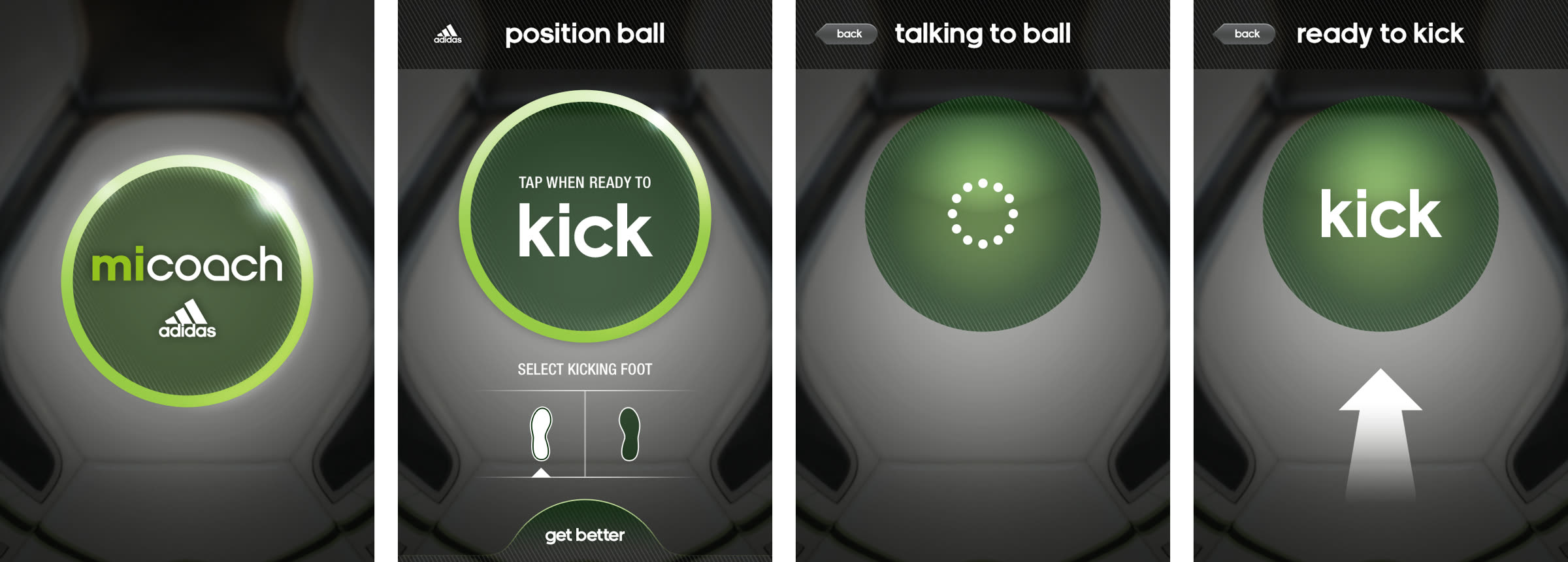
Adidas was developing a digital soccer ball for its miCoach line. The ball senses the kick. The phone has to pair with it, wait for the kick, pull the data down and show what happened.
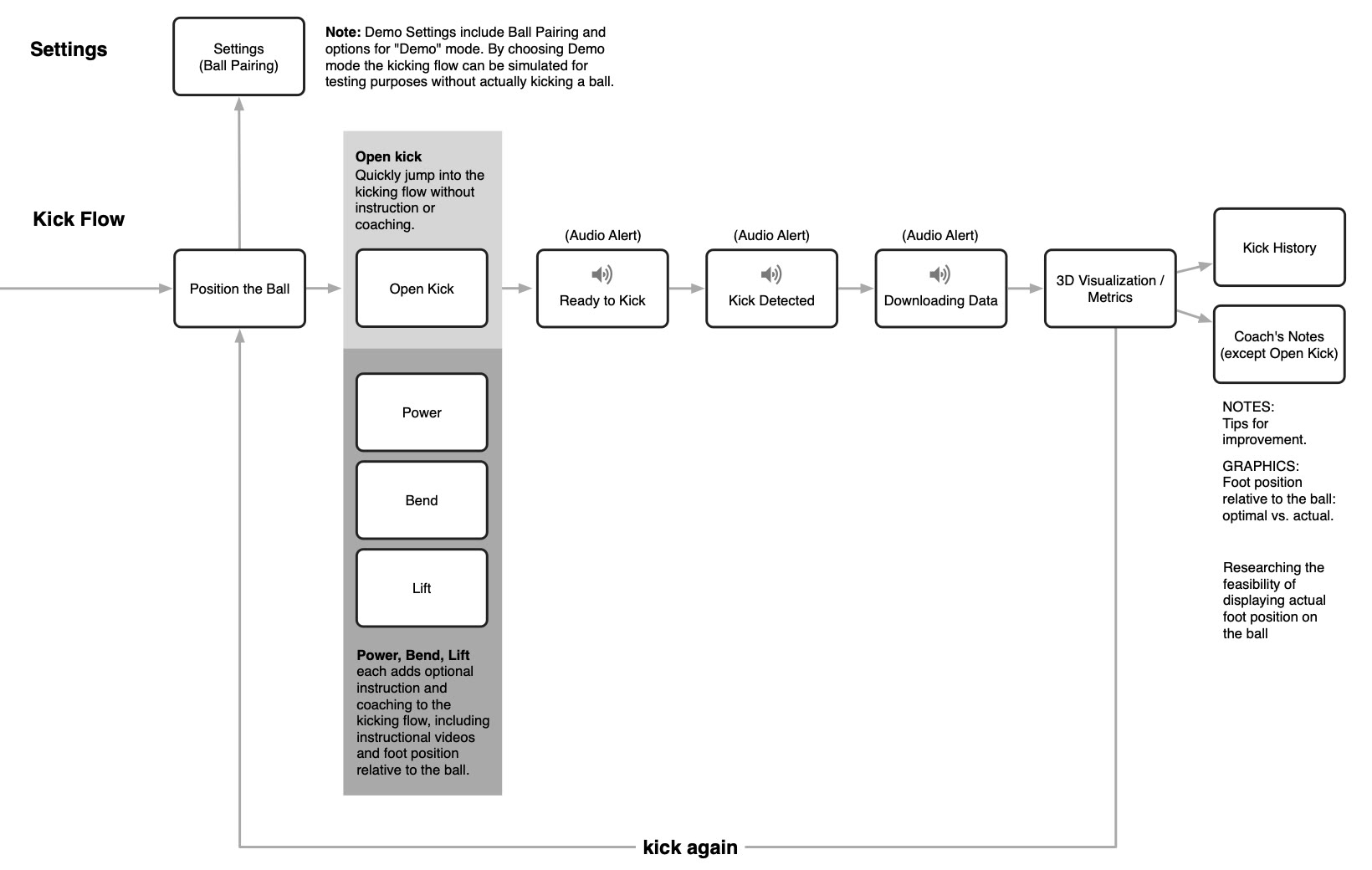
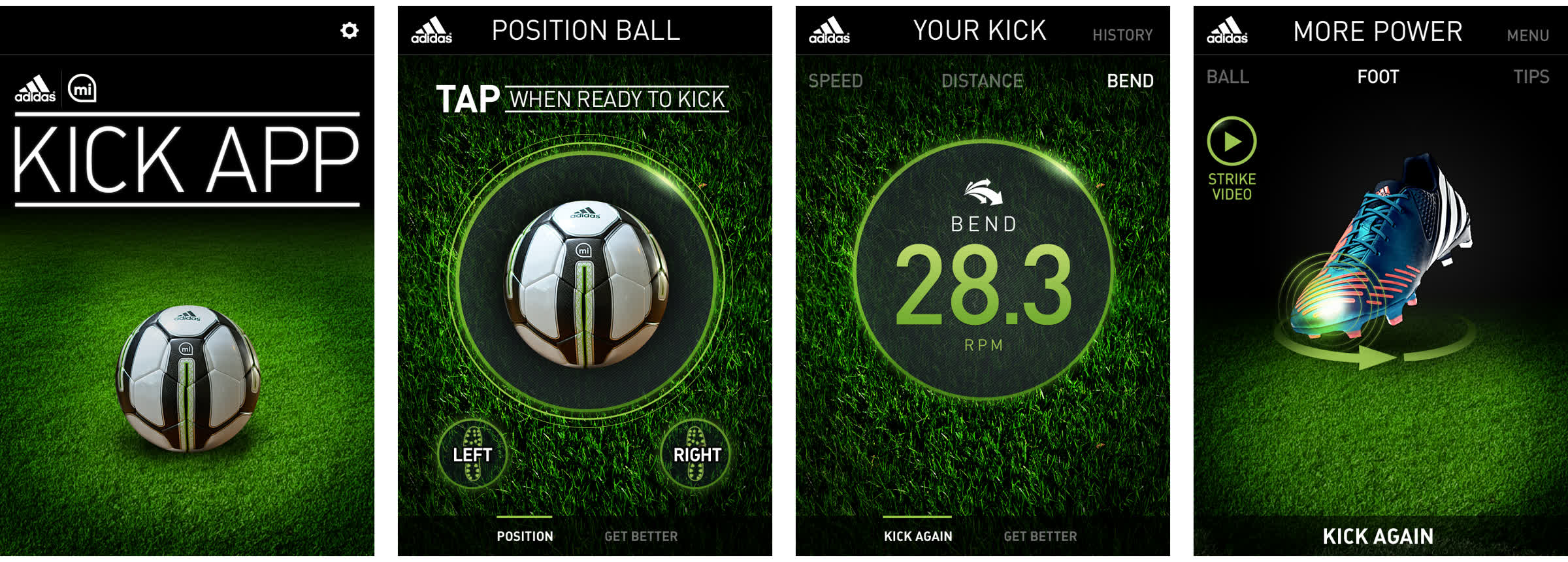
The first goal was an executive prototype. Our team at Citizen started with the flow: position the ball, ready to kick, kick detected, downloading data, then a 3D view of the kick and its numbers.
Open Kick drops the player straight into kicking. Power, Bend and Lift add coaching: instructional video, tips, and where the foot met the ball. A demo mode in settings could simulate a kick, so the app could be shown without a ball.
02Hypothesis
The phone is on the grass, so the app has to work at a distance
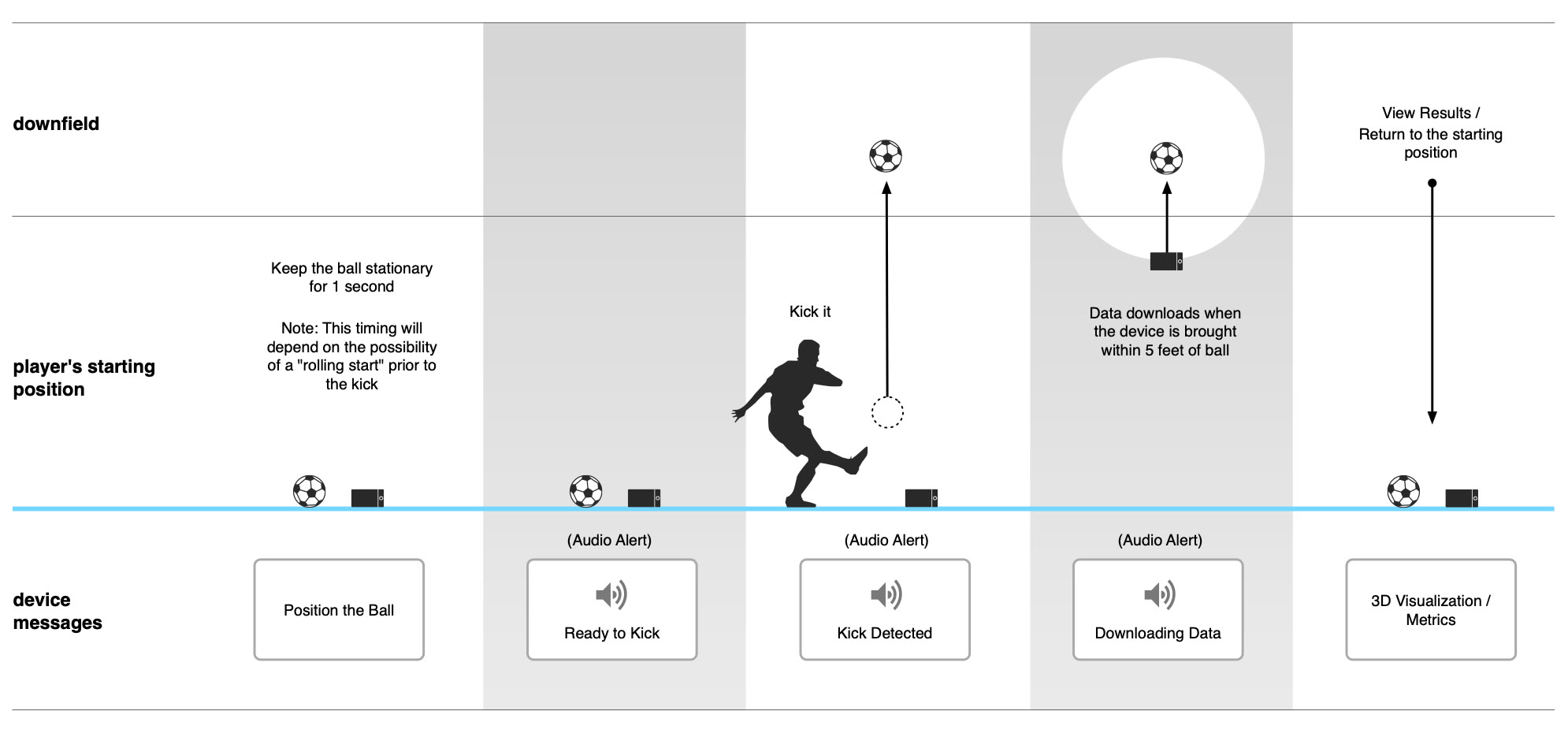
We drew where the ball, the phone and the player are during a kick. The ball sits still for a second. The player kicks it downfield. The data downloads when the phone comes within 5 feet of the ball.
For most of that time nobody is looking at the screen. So we bet on two things: sound tells the player what's happening, and the screens are readable from a few steps away.
Our concept notes say it plainly: large geometric shapes for easy reading from a distance, bold large type, and a portrait layout for one-handed use.
03Experiments
Five looks in a week, then backgrounds, motion and sound
We turned around five visual concepts on a one-week fast track so Adidas could pick a direction for the prototype: Retro Crisp, Font Flick, Precision Strike, GeoSport in dark and light, and Eclipse.
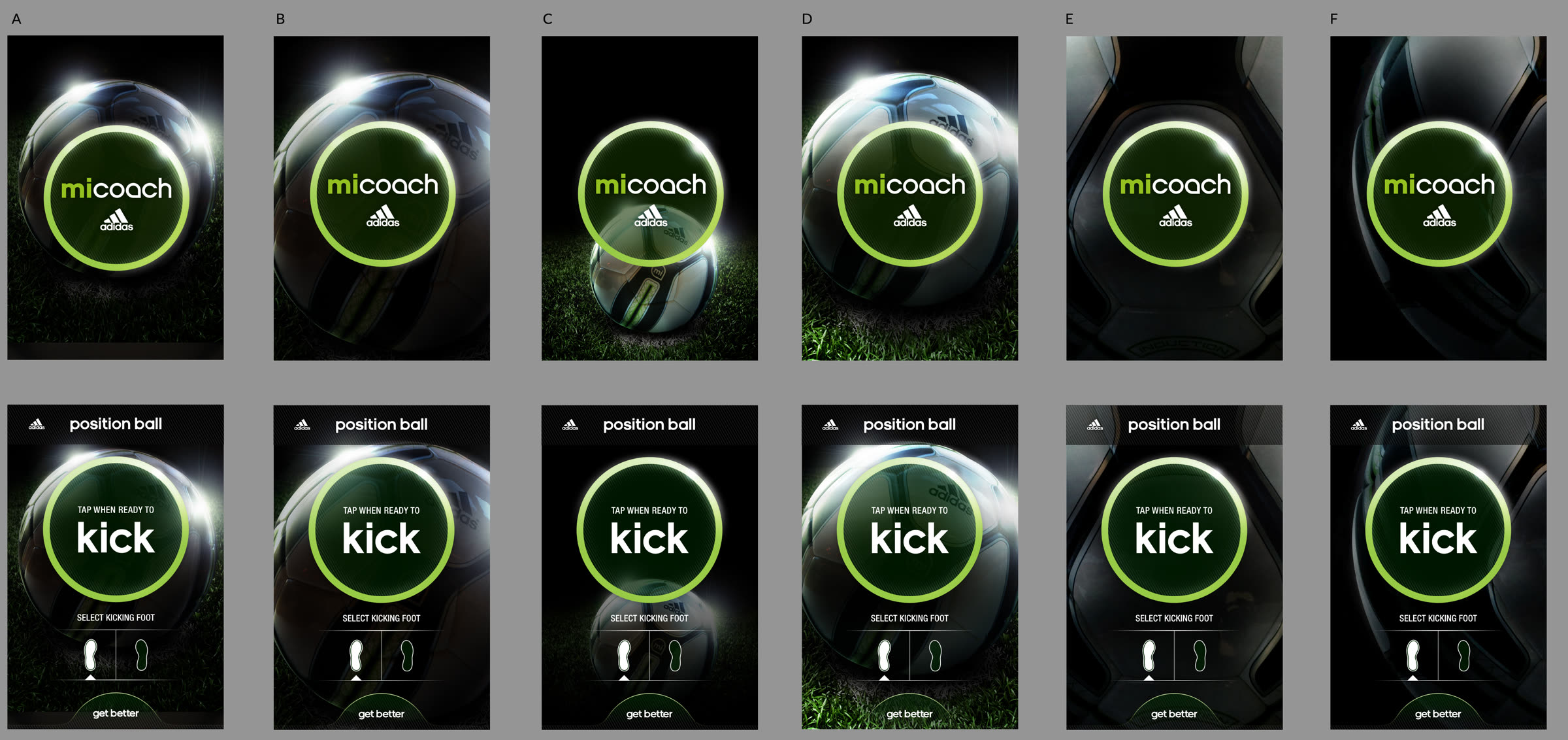
GeoSport Dark went furthest before the reviews settled on Retro Crisp: clean shapes, minimal type and a tactile feel. We then tried six background images behind the same two screens.
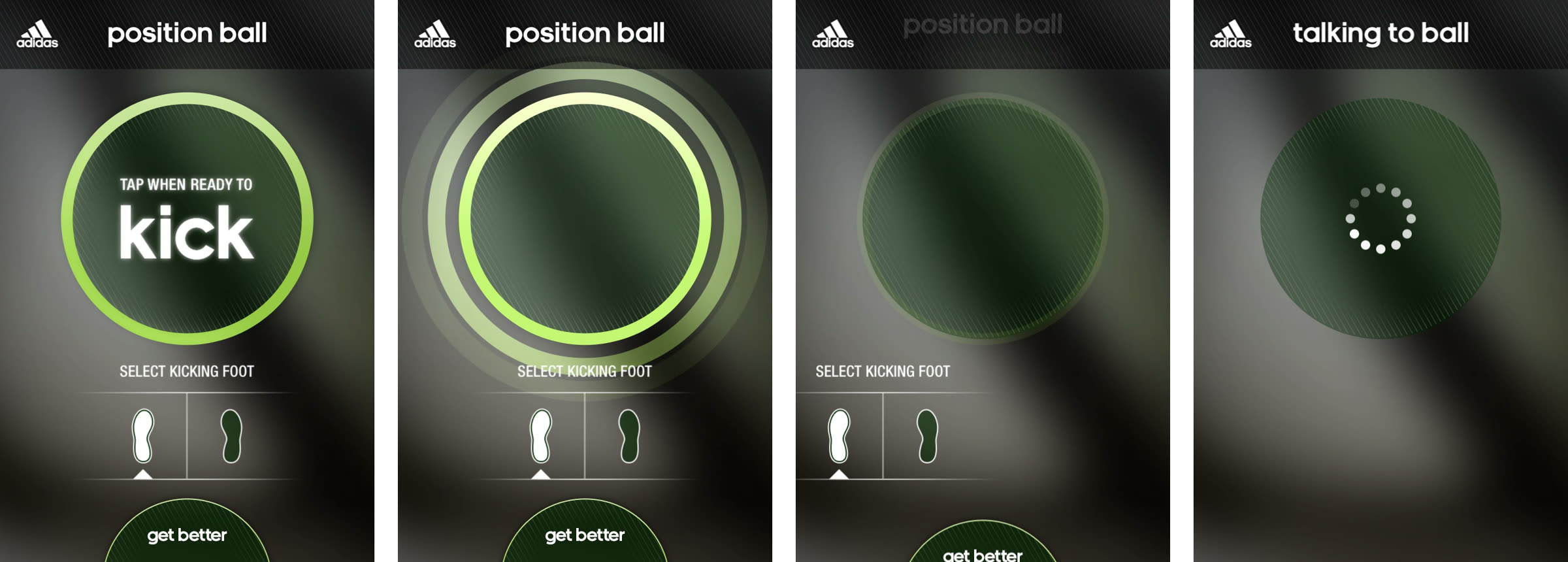
Motion studies tested each hand-off: splash to tap, the pulsing kick button, the button collapsing into the talking to ball state, and the result drawing itself.
For sound we wrote cues for three moments: ready to kick, kick detected and data downloaded. One direction used real-life sounds, like a referee's whistle, a crowd and a vuvuzela. Another used digital tones, bells and whistles.
04Learning
Show one kick clearly before showing all of them
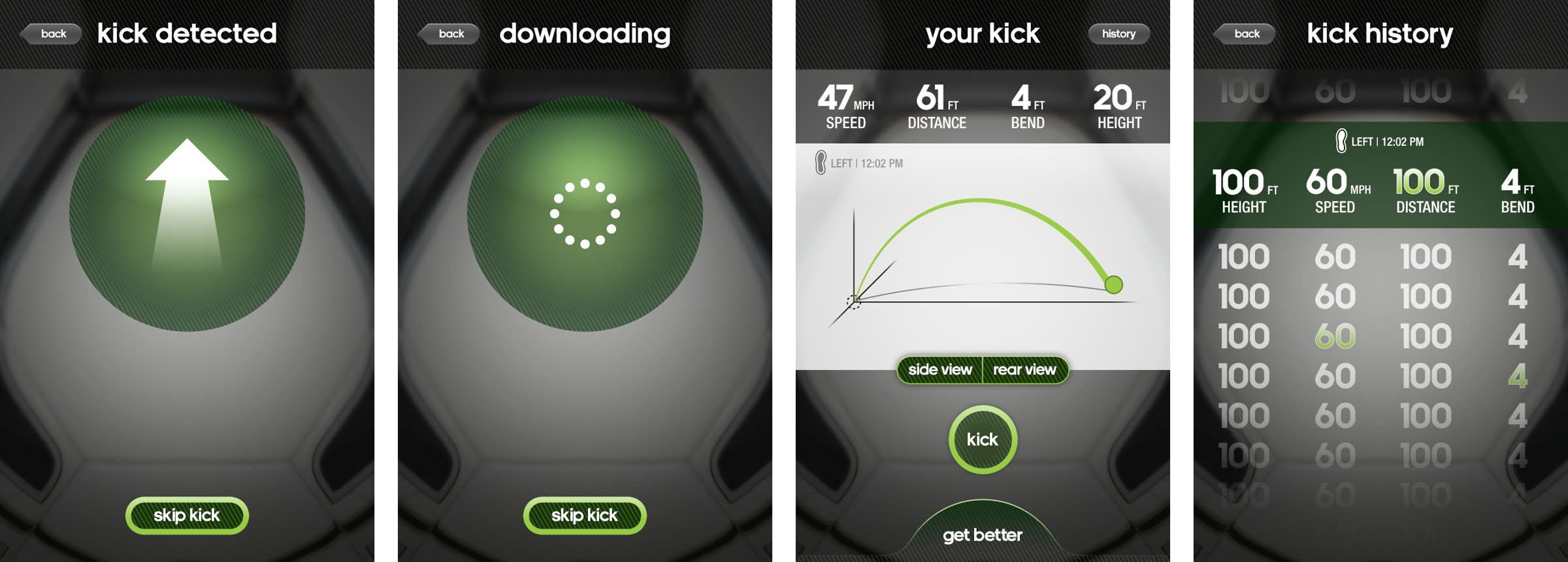
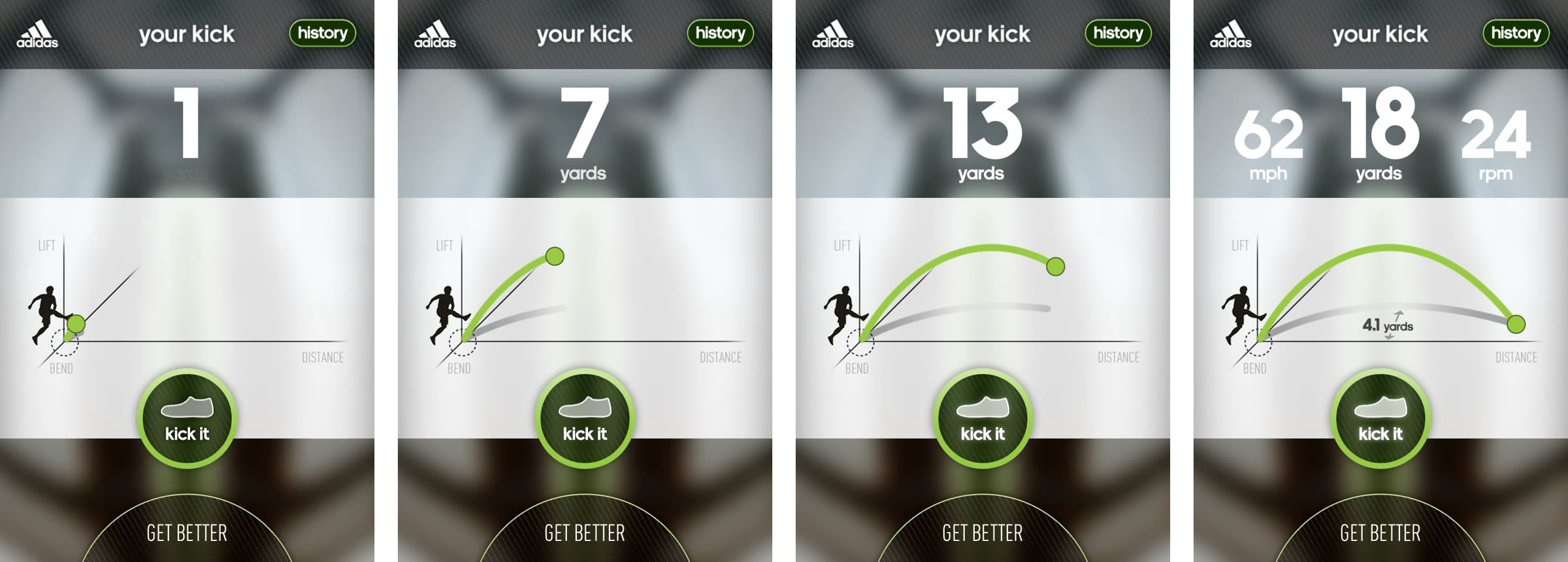
The result screen leads with five numbers: speed, distance, bend, height and spin. Below them, the flight path draws as an arc, with a side view and a rear view.
In motion, the distance counts up while the arc draws, then speed and spin settle in. The number and the picture arrive together.
History lists every kick in the same columns. For a second phase we concepted a Record Book: all-time bests at the top, then highlights like a streak or a best kick to beat. Highlights are an approachable way to understand kick data without working through a ton of numbers and charts.
05Outcome
Screens locked for slicing and handed to Adidas's developers
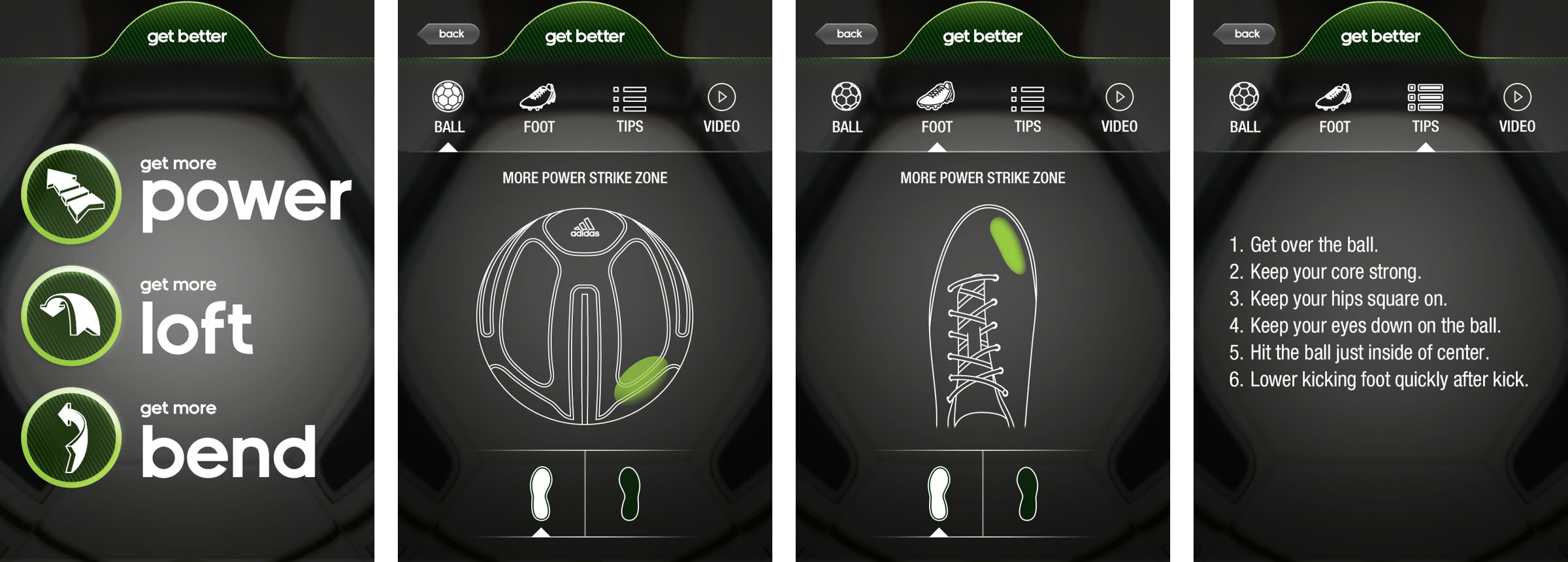
Get Better completes the loop. Pick more power, loft or bend, then see the strike zone on the ball and on the foot, a short list of tips, and a video.
Over five weeks the work went from kickoff to screen design, sound design, then asset slicing and handoff, with support for Adidas development after. The final review locked the Open Kick and Get Better screens for slicing.
We don't know from the files how much of the prototype reached the finished product.